
Notes, Mentions & Notifications
Notes on a vehicle
Section titled “Notes on a vehicle”Every car has its own notes feed. Date-stamped, threaded, and attached to the vehicle forever. It travels with the car through every step, every move, into the archive, and into reports.
Anyone can read. Anyone with permission can post. Notes follow the car everywhere — through every step, every move, into the archive, into reports.
For comments on a specific work item, see Work → Manager approves or declines.
@mentioning a person
Section titled “@mentioning a person”Type @ anywhere in a note and a picker appears. Start typing the person’s name and tap to select them.
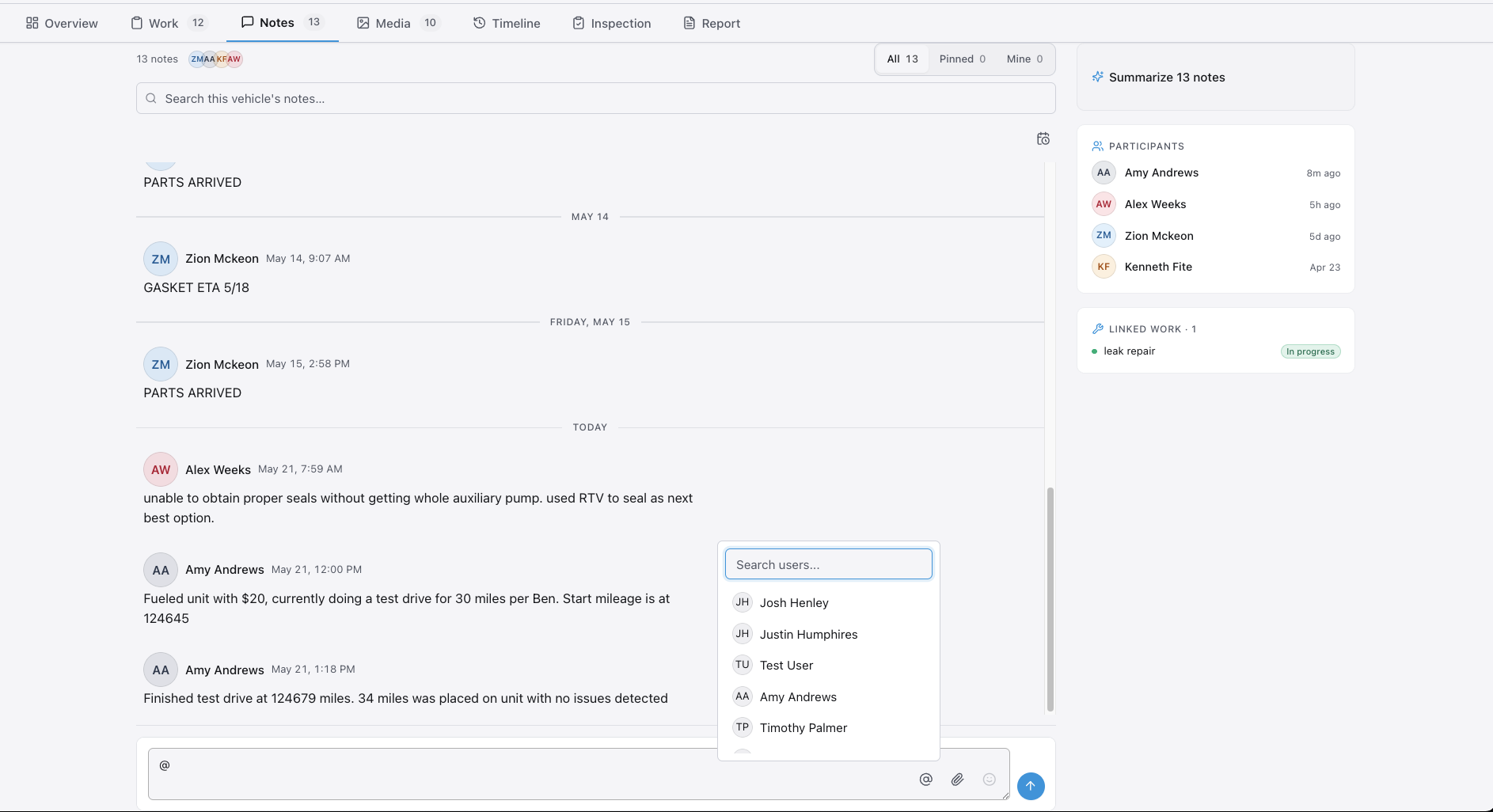
- Start a note on any vehicle or work item.
- Type
@followed by the person’s name. - Tap their name in the list.
- Finish your note and tap Send.
The person you mentioned gets an in-app notification right away. If they have SMS turned on, they get a text too. Use mentions when you need someone to look at the car soon — not just for their information.
@mentioning a group
Section titled “@mentioning a group”You can mention a whole group at once. Three groups are set up for every rooftop (your dealership location) by default.
| Group | Who’s in it | Use it for |
|---|---|---|
@service | Service advisors and writers | Customer updates, approval requests, RO questions |
@parts | Parts staff | Parts orders, ETAs, sourcing questions |
@detail | Detail technicians | Scheduling detail work, flagging special requests |
Type @service, @parts, or @detail in any note to notify everyone in that group at once.
Your manager controls who belongs to each group. To add or remove someone, they go to Admin → Team and edit the group membership. Managers can also create custom groups for your rooftop — for example, an @wholesale group or a @glass group for a body shop. See Admin & Help for how to configure groups.
Pinning a note
Section titled “Pinning a note”Pin a note to keep it at the top of the feed. Everyone sees pinned notes first when they open the car.
Pin the things the next person needs to see first: customer notes, deadlines, anything you don’t want buried.
AI note summary and translation
Section titled “AI note summary and translation”Long note threads are hard to scan fast. Two one-tap tools help.
Summary — Tap Summarize to collapse a thread into a few bullet points. You get the key facts without reading every message.
Translation — Tap Translate to swap the thread into your preferred language. Good for crews working in multiple languages. The original stays available — tap again to switch back.
Both tools work on vehicle notes and work item notes. Nothing runs automatically.
In-app notifications
Section titled “In-app notifications”The bell icon in the top bar is your notification center. The number badge shows unread alerts. Tap the bell to open the list.
Notifications expire on their own — check the bell before they roll off the list:
| Notification type | Kept for | After this |
|---|---|---|
| @mentions and approval requests | 90 days | Gone from the bell |
| Step changes and work item status updates | 30 days | Gone from the bell |
| Alerts generated by the AI agent | 14 days | Gone from the bell |
A nightly cleanup runs at 3 AM Central time. The car history (notes, work items, moves) is not affected — only the bell list.
What triggers a notification:
- Someone @mentions you in a note
- A manager requests your approval on a work item
- A car enters a step you’ve subscribed to
- A work item you submitted gets approved or declined
Tap any notification to mark it read. Tap Mark all read to clear the badge.
SMS notifications
Section titled “SMS notifications”Once SMS is on for your rooftop and you’ve opted in, you get a text when someone @mentions you, when a car enters a step you’ve subscribed to, and when a work item you submitted gets approved or declined. Your admin enables SMS for the rooftop first. You opt in from your profile — go to profile settings and turn on SMS notifications.
SMS delivers to the mobile number on your account. Keep it up to date so you don’t miss alerts. You do not need the app open to receive texts.
Not getting texts? Check these three things:
- Your rooftop admin has SMS enabled for the dealership.
- You turned on SMS in your profile settings.
- The mobile number on your account is current.
If all three look right and you’re still not getting texts, email [email protected].
Step subscriptions
Section titled “Step subscriptions”Subscribe to a step to get notified when any car enters or leaves it.
Best practice: subscribe to the steps you’re responsible for. Detailer subscribes to Detail. Photographer subscribes to Photos. GM subscribes to Frontline. Don’t subscribe to everything — your phone will hate you.
Common notification setups
Section titled “Common notification setups”| Role | Subscribe to |
|---|---|
| Detailer | Detail step |
| Photographer | Photos step |
| Service writer / advisor | RO start, RO close |
| Service manager | Estimate approval queue |
| GM | Frontline + overdue alerts |
| Parts manager | Pending parts (work items with Parts ETA set) |
Morning Briefings
Section titled “Morning Briefings”Morning Briefings are a daily SMS sent to the advisor group. The message covers what happened overnight, which cars are overdue, and what to tackle first. Your team walks in already knowing what’s behind and where to start.
Three things must all be true for Morning Briefings to arrive:
- The feature must be enabled on your rooftop. Your admin turns this on in rooftop settings. If you’re not getting briefings, this is the first thing to check.
- An advisor group must be configured with a delivery time and timezone. Someone in Admin sets the time (for example, 6:30 AM) and the rooftop’s timezone. The briefing sends at that time every day. If no time is set, no briefing sends.
- The members of the advisor group must have phone numbers and SMS opt-in active. Each person in the group needs a valid mobile number on their account and SMS notifications turned on.
If briefings aren’t arriving, start with your admin — most often it’s #1 or #2 above.
The Morning Briefing covers high-level stats: total cars in recon, vehicles that exceeded their time goal, vehicles overdue for the next step, and any cars that moved to a terminal step overnight.
See Views & Reports for the daily briefing print version, which covers the same information in a format you can bring to a morning meeting.
Mobile vs desktop notifications
Section titled “Mobile vs desktop notifications”Mobile — Alerts appear as banners at the top of the screen. They disappear when you tap them. The bell badge shows your unread count.
Desktop — The bell icon shows a badge count. Click to open the list. No pop-up banners on desktop.
SMS works on both — it delivers to your phone number, not to the app or browser. You get the same texts whether you’re on mobile or desktop.