
Admin & Help
Roles — what each role can do
Section titled “Roles — what each role can do”Every person on your team has a role. The role controls what they can see and do. Pick the right role when you invite someone — you can always change it later.
| Role | View the dashboard | Add notes / photos | Add or edit work | Approve work | Archive cars | Invite users | Set up steps / labels |
|---|---|---|---|---|---|---|---|
| View Only | ✓ | — | — | — | — | — | — |
| Vendor | ✓ | ✓ (their cars only) | — | — | — | — | — |
| User | ✓ | ✓ | ✓ | — | — | — | — |
| Tech | ✓ | ✓ | ✓ | — | — | — | — |
| Parts | ✓ | ✓ | ✓ | — | — | — | — |
| Manager | ✓ | ✓ | ✓ | ✓ | ✓ | — | — |
| Rooftop Admin | ✓ | ✓ | ✓ | ✓ | ✓ | ✓ | ✓ |
| Platform Admin | ✓ | ✓ | ✓ | ✓ | ✓ | ✓ | ✓ |
View Only — owners, accountants, anyone tracking progress but never touching cars.
Vendor (outside body shop, PDR, glass) sees only the cars assigned to them. They can add notes and photos on those cars.
User (service advisor, sales staff, anyone on the floor) can see the dashboard, move cars, add notes, and add work items. The default role for most people on your team.
Tech (technicians, detailers) marks jobs done and runs inspections. Parts (parts counter, parts manager) sees and updates parts-related items.
Manager (service manager, used-car director, GM) approves work, archives cars, sets the Readiness Light, and configures team settings.
Rooftop Admin (the person setting up EasyRecon for one store) sets up steps, labels, and users for one rooftop (your dealership location). Platform Admin (multi-store corporate admin) works across all rooftops.
Inviting a team member
Section titled “Inviting a team member”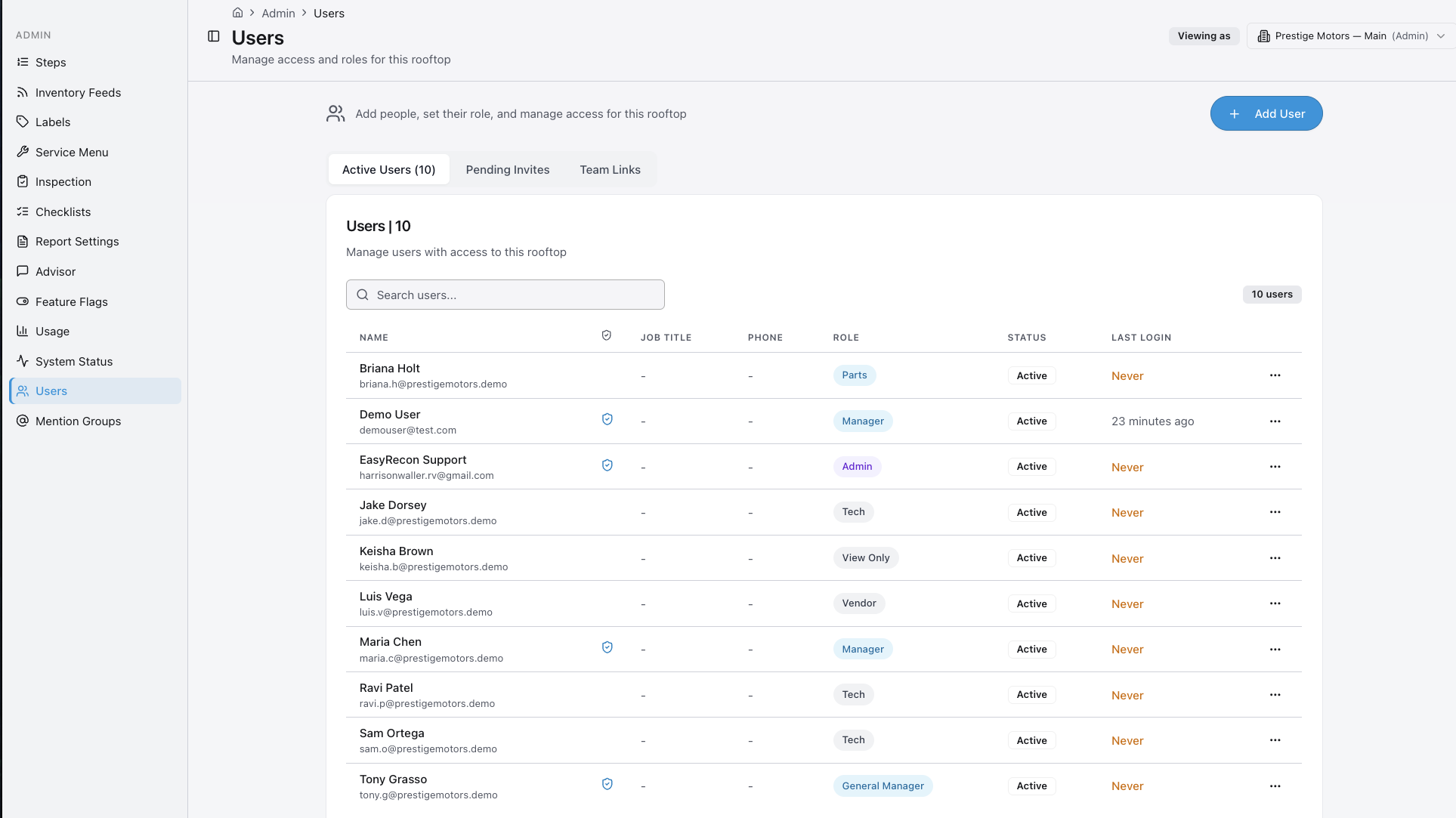
Two ways:
- Add directly — Type their email, name, role. Set their initial password. They get an email with their login.
- Send an invite link — Type their email, pick the role. They get an email with a link to set their own password.
After you send, the user shows up on the Admin → Team list with a “Pending” tag until they accept the invite.
Editing or removing a team member
Section titled “Editing or removing a team member”Open Admin → Team. Tap the person’s name. From there you can:
- Change their role — Pick the new role, tap Save. Effective immediately. A tech promoted to Manager gets approve access the moment you save.
- Deactivate them — Tap Deactivate and confirm. They can no longer sign in. Their history — notes, work items, moves — stays in the system.
Use role changes for promotions or coverage. Use deactivate when someone leaves.
Multi-rooftop access
Section titled “Multi-rooftop access”If you manage more than one store, each store is a separate rooftop. Ask your Platform Admin to add the other rooftop to your account. Once they do, a rooftop picker appears at the top of the app. Tap it to switch stores.
Each rooftop has its own board, steps, team, and settings. Nothing carries over automatically.
If you don’t see the rooftop picker, you only have access to one rooftop. Email [email protected] to request access.
Note: if a user is set to access only specific rooftops (not all), they won’t see the group dashboard or group reports — those need group-wide access. Adjust in Admin → Users → Rooftop access.
Rooftop settings
Section titled “Rooftop settings”In Admin → Rooftop, set:
- Labor rate — your dealership’s hourly labor rate. Used to calculate labor cost on work items.
- Goal times — target time per step. Cars over goal show as overdue.
Light vs Dark mode is a personal preference now — set it in your profile, not in rooftop settings.
Holding cost is set by EasyRecon to an industry-average daily rate. It’s not adjustable per dealership — if the number looks off for your market, email [email protected] and we’ll talk through it.
Mention groups and the advisor group
Section titled “Mention groups and the advisor group”EasyRecon has three built-in mention groups: @service, @parts, and @detail. Type one in a note and everyone in that group gets notified.
The advisor group is separate. Members get the Morning Briefing — a daily SMS with overnight activity, overdue cars, and what to tackle first.
Your manager sets up group membership in Admin → Team → Groups. You can also create custom mention groups — they work the same as the built-in ones.
There’s also an in-app group chat — a single room for your whole dealership, separate from any specific car. Use it for dealership-wide announcements, shift handoffs, or anything that isn’t tied to one vehicle. Open it from the chat icon in the bottom nav on mobile, or from the left sidebar on desktop.
Common questions (FAQ)
Section titled “Common questions (FAQ)”I forgot my password. What now? Tap Forgot Password on the sign-in screen. Enter your email. Check your inbox for a reset link. If you don’t see it in a minute, check spam.
Why can’t I see a vehicle? Either it’s archived, or you don’t have access to that rooftop. Check the Archived filter on the dashboard. If it’s not there, ask your Manager to confirm which rooftop the car is on.
Why can’t I approve work? Approving work items requires Manager role or higher. If you need to approve work and can’t, ask your Manager to do it or to upgrade your role.
Where do my photos go? Photos stay with the car. Even after you archive the vehicle, the photos are still there. Open the archived car and tap the Photos tab.
Why isn’t my vendor getting texts? Two things to check: (1) the vendor is invited with the Vendor role, and (2) a mobile number is saved on their profile. Both must be true for vendor SMS to work.
Why isn’t my Morning Briefing arriving? Three things must all be true: SMS is enabled for your rooftop, you are in the advisor group, and your mobile number is saved on your profile. If any one of these is missing, the briefing won’t arrive. Ask your Rooftop Admin to check all three.
How do I change my notification settings? Go to Profile → Notifications. You can turn SMS on or off and pick which step events you want to hear about.
Why does the dashboard show different numbers than my old whiteboard? Active Days only counts the working portion of recon — the steps your team controls. Intake and terminal steps don’t count. Your whiteboard probably counted all days from lot arrival, which is a different number. Your admin picks which steps count in workflow settings, so the window matches your real process.
When something’s broken
Section titled “When something’s broken”| Problem | Try this |
|---|---|
| Login isn’t working | Reset password from the sign-in page. If that doesn’t work, email [email protected]. |
| A car is missing from the dashboard | Filter the dashboard by archived. Or search by stock/VIN. Cars don’t get deleted — they get archived. |
| AI isn’t responding | Email [email protected] — AI features may need to be enabled for your dealership. |
| A photo won’t upload | Check your signal. Try again from desktop or wifi. |
| Inventory feed isn’t pulling cars | Email [email protected] — we’ll check the feed status on our side. |
| I’m not getting notifications | Check your notification settings in your profile. Subscribe to the steps relevant to your job. |
| A work item won’t approve | Make sure it has pricing set. Manager role required to approve. |
Contact us
Section titled “Contact us”Email [email protected]. Include your rooftop name. If your question is about a specific car, include the stock number or VIN. If something looks wrong on screen, attach a screenshot — it helps us find the problem faster.